 Vehra
How Vehra works
You point at the problem. Vehra attaches what the browser already knew and the steps you took, and tells you what it could not catch.
Three steps, from click to ticket
-
Allow
Click the Vehra icon on your staging page. Chrome asks once if Vehra can work on that address. You can also type an address, or a whole domain, under Settings.

-
Point
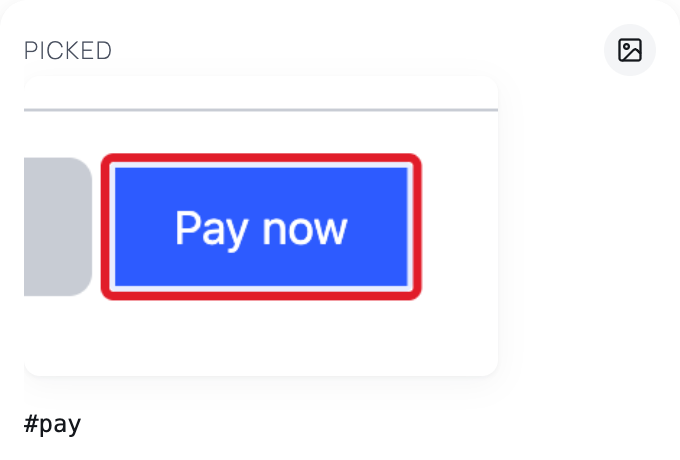
Click the broken element. Vehra keeps the last 30 seconds and freezes them when you click. Want to show just part of the page? Drag a box around it instead.
-
Say, check, save
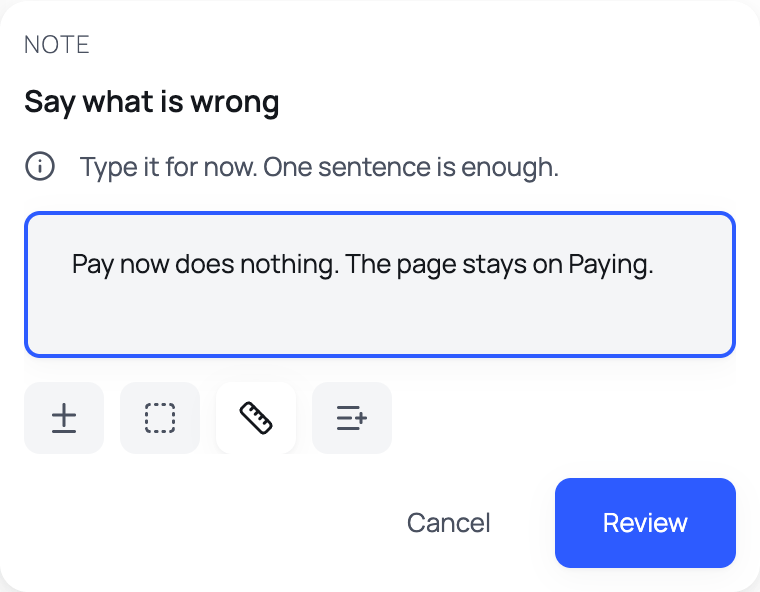
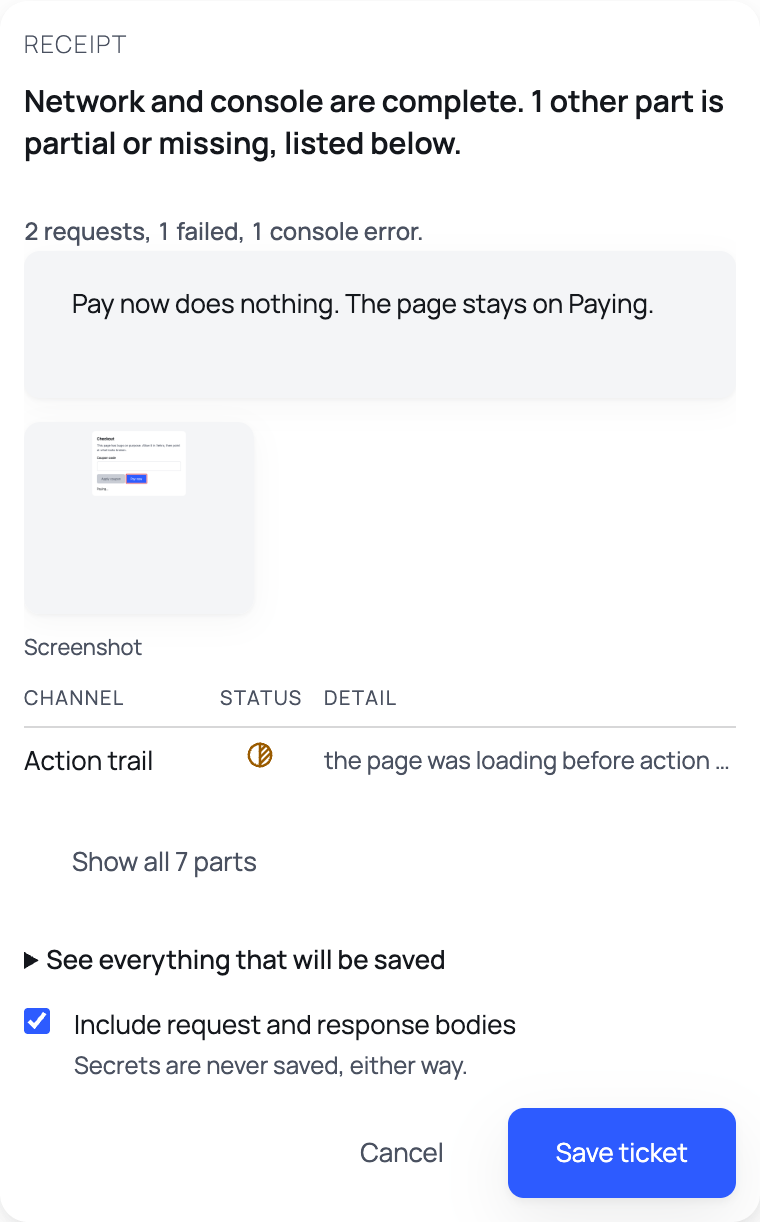
Type one sentence. If it helps, add the element that works, an area, or the design's numbers. The receipt lists every part. Save ticket keeps it on your computer.
What is on a ticket
- Network
Requests and responses around the problem, with headers and bodies. Passwords, tokens, cookies, authorization headers and card numbers are taken out first. Anything else in a body stays, and you can leave bodies out when you save.
- Console
Messages and errors from the browser console.
- Element
What you pointed at, and where it sits on the page.
- Action trail
The clicks and steps before the problem. Never what you typed.
- Screenshot
The page, with the typed fields it can find covered.
- Element state
Whether it is disabled and why, what is covering it, and which fields are invalid.
- Note
Your sentence.
Only if you ask: a clip, the page's tabs and filters, a comparison with a working element, a design check, and an accessibility and SEO check.
The receipt
Every part is marked in one of three ways, and the reason is written next to it. A part that lost something is never marked complete.
- Complete
Everything that could be captured was.
- Partial
Some of it was captured. The receipt says what is missing and why.
- Missing
It could not be captured at all. The receipt says why.
If the page's own load was missed, Vehra offers to reload so the load is recorded too.
After the ticket
- Retest
Open an old ticket's page and answer "looks fixed" or "still broken" on the bar. The new ticket says which one it re-checks.
- Duplicate hint
Before you save, Vehra points out tickets you already have that look like this one, and why. You can still save.
- A test from a ticket
A browser test written from the failing requests in the ticket. It is written to fail while those requests fail.
- A test from what you do
Record yourself using the page and Vehra writes a browser test from it. What you type is never recorded, so you fill those values in when you run it. By default the test ends by checking the page it finished on (you can turn that off), and it offers checks for failed requests and console errors.
Permissions
The privacy page says what each permission is for, including why Vehra needs the debugger permission and what it can't do with it.